Make a Puppy Linux Live USB drive on Windows, Linux, or macOS. This guide covers a few quick ways to install, boot, and run Puppy Linux straight from a USB stick using YUMI, Universal USB Installer, or the dd command. Puppy Linux is still a top choice for a lightweight Linux distro, mostly because it runs right from RAM, barely needs any system resources, and still flies on old machines. It's fast, it's super portable, and you don't need a fancy computer to use it.
Puppy Linux Live Running from USB
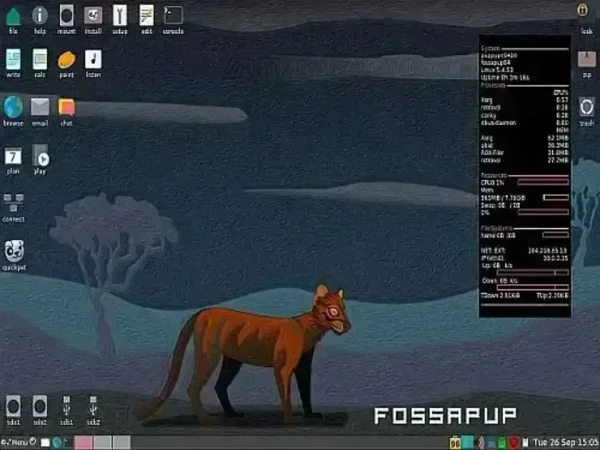
Puppy Linux is a popular lightweight, open-source distribution designed to be fast, efficient, and easy to use. It was originally created by Barry Kauler in 2003 and has since gained a dedicated user base, spawning many different spinoffs due to its unique characteristics and versatility. Key features of this Live Linux distribution include:
- Lightweight Linux Distro: Known for its small footprint and minimal system resource requirements. It can run smoothly on older hardware with limited RAM and storage, making it an excellent choice for revitalizing aging computers or systems with minimal resources.
- Live Linux Distribution: Puppy Linux is distributed as a bootable ISO image, allowing you to boot your computer directly from the ISO without needing to install it on your hard drive. This makes it extremely handy for use on the go.
- Persistence Feature: Most modern Puppy Linux releases support persistence, enabling you to save some of your settings, files, and configurations while running from USB.
- User Friendly Desktop Environment: The distribution emphasizes user friendliness and accessibility for all skill levels. Most builds feature lightweight graphical desktop environments such as JWM, ROX Desktop, IceWM, Openbox, or LXDE depending on the Puppy Linux variant.
- Simple Package Management: Puppy Linux uses its own package management system based on PET packages and the Puppy Package Manager. Many Puppy Linux variants can also utilize software packages from their parent distributions such as Ubuntu, Debian, or Slackware, greatly expanding software availability.
- Build Your Own Puppy: Highly customizable, Puppy Linux allows users to create their own variants, often called Puppy builds or Puppy derivatives, tailored to specific needs. This flexibility makes it a popular choice for embedded systems and specialized use cases.
- Puplets: Puppy Linux offers various "puplets, " or customized versions designed for different purposes, such as Puppy Arcade for gaming, Puppy Slacko based on Slackware, and many more. These puplets come preloaded with specific software and configurations tailored for their intended uses.
Overall, booting from a Puppy Linux USB is ideal for users seeking a lightweight, portable, and customizable Linux distribution that works well on older hardware.
Running Puppy Linux Entirely from RAM
One of Puppy Linux's most unique features is its ability to load completely into system memory. During startup, Puppy Linux copies its compressed filesystem into RAM, allowing the operating system to continue running without constantly accessing the USB drive.
Once loaded, many Puppy Linux versions allow the USB flash drive to be removed while the operating system continues running. This results in faster performance, reduced wear on the USB drive, and an exceptionally responsive desktop experience.
This capability makes Puppy Linux particularly attractive for older computers, portable computing environments, troubleshooting tasks, and situations where storage performance is limited.
Specifications
- Distribution Home Page: Project Page
- Developer: Barry Kauler
- Original Release Date: First released in 2003
- Main Distribution Status: Yes (with many spinoffs and remixes based on it)
- Persistence Feature: Yes
Download Puppy Linux
You can download current Puppy Linux releases and community maintained Puppy variants from the official Puppy Linux project page and community forum. Popular releases include Fossapup, Slacko Puppy, XenialPup, and BionicPup.
Puppy Linux Minimum System Requirements
One of the biggest advantages of Puppy Linux is its ability to run on hardware that struggles with modern operating systems.
| Processor | Pentium class CPU or newer |
| Memory | 512 MB RAM minimum (1 GB+ recommended) |
| Storage | 2 GB USB flash drive minimum |
| Architecture | 32-bit or 64-bit depending on Puppy build |
Why Run Puppy Linux from USB?
Unlike many modern Linux distributions, Puppy Linux is specifically designed to operate efficiently from removable media. Running Puppy Linux from a USB flash drive provides several advantages:
- Portable Linux environment that travels with you.
- Excellent performance on older hardware.
- Small download size compared to most Linux distributions.
- Persistence support for saving files and settings.
- Can often load completely into RAM for faster operation.
- Allows testing Linux without modifying an existing operating system.
Basic Essentials to Create a Puppy Linux USB
- Windows 11, 10, 8, 7, XP, MacOS, or Linux
- *puppy*.iso file
- USB flash drive (for best performance, use a fast SSD thumb drive).
- YUMI (USB Boot Maker), dd.exe, or the dd command from Linux or MacOS.
Create a Puppy Linux Bootable USB using YUMI
- Download YUMI and double click the executable to run it.
- (1) Select your USB drive from the drop down list.
(2) Choose "Puppy Linux" as the distribution.
(3) Browse to your *pup* ISO file and click Create.
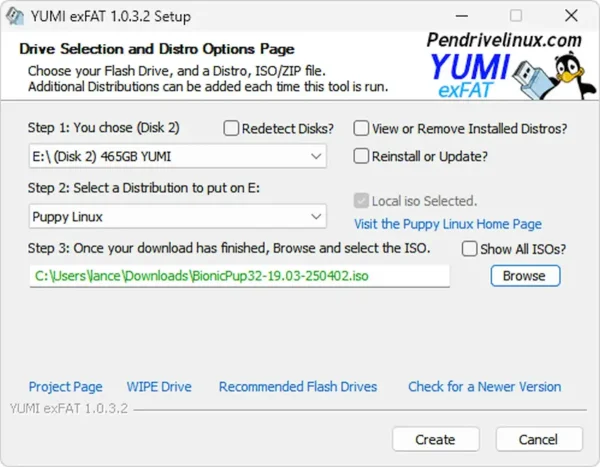
YUMI makes it easy to keep Puppy Linux alongside other operating systems and utilities on the same USB drive. This makes it an excellent choice for creating a portable multiboot toolkit containing Linux distributions, recovery tools, antivirus environments, and diagnostic utilities.
Make a Puppy Linux Bootable USB using DD on Windows
You can use the following steps to create a bootable Puppy USB drive with dd on Windows:
Note: Use caution with dd as it will destroy all data on the selected drive. Triple check that you are writing to the correct USB drive before executing the dd command.
- First, download a Puppy ISO from the official website. Ensure you select the correct version (32-bit or 64-bit) for your system.
- Insert your USB drive into the computer, ensuring it has enough capacity to hold the ISO file.
- Open Command Prompt with administrative privileges (right-click and select "Run as administrator") and type:
diskpart - To list all attached disks, type:
list diskIdentify the disk number corresponding to your USB drive. Confirm this using File Explorer or the Disk Management tool (diskmgmt.msc) before proceeding.
- Clean and unmount the USB drive by typing:
select disk XReplace
Xwith your USB drive's disk number. - Then to wipe clean and unmount, type:
clean - Finally, to exit diskpart:
exit - Download dd for Windows and launch it.
- Write the Puppy ISO to your USB drive using the dd command (replacing
path-to-puppy.isoandXwith your USB disk number):dd.exe if=path-to-puppy.iso of=\\.\PhysicalDriveX bs=4M --progress
- When the write completes, reboot your PC, entering into system BIOS/UEFI, and select to boot from the USB drive. Then proceed to boot.
Making a Puppy Linux USB from Linux
To create a bootable Puppy Linux USB from Linux (Ubuntu used here), follow these steps:
We will be using dd here again. Again note that dd command overwrites data and must be used carefully. Triple check your USB path before proceeding.
- Download Puppy ISO and move it to your Desktop.
- Insert a USB drive into your PC.
- Open a terminal (Ctrl + Alt + T).
- Identify your USB device with:
sudo fdisk -l
Note the device name assigned to your USB (e.g., /dev/sdX).
- Navigate to Desktop:
cd Desktop
- Run dd to copy Puppy Linux to the USB drive:
sudo dd if=path-to-puppy.iso of=/dev/sdX status=progress
- Reboot your PC, access your UEFI/BIOS or Boot Menu, and select your USB drive to boot Puppy Linux.
Create a Puppy Linux Live USB from macOS
For macOS users, the process is slightly different. Here's how to create a bootable Puppy Linux USB using Terminal:
- Download the desired Puppy ISO.
- Insert a USB drive into your Mac. Ensure it has enough space and back up any data as this process will erase the drive.
- Open Terminal (Command + Space, type
Terminal, then hit Enter). - List disks with:
diskutil listIdentify your USB drive (e.g.,
/dev/disk2) by verifying size and partitions. - Unmount the USB drive:
diskutil unmountDisk /dev/diskXReplace
Xwith the disk number. - Use dd to write the ISO:
Note: This will overwrite the drive. Double-check the device path.sudo dd if=/path/to/*pup*.iso of=/dev/diskX bs=4mParameters explained:
- if= input file (path to ISO)
- of= output device (your USB drive)
- bs=4m block size (4 MB for efficient writing)
You will likely be prompted for your password.
- Wait for completion (may take several minutes), then eject the USB:
diskutil eject /dev/diskX - Reboot your Mac, hold Option (⌥) at startup, and select the USB drive to boot Puppy Linux.
Booting from USB Puppy Linux
- During startup, at the POST screen, use your motherboard's hotkey to enter BIOS.
- Use the arrow keys to set your USB drive as the first boot device.
- Save changes (typically F10) and reboot the system to boot from the USB flash drive.
If all went well, you should boot into your Puppy Linux USB. You may be prompted to create a persistent save file or save folder for storing settings and personal data between sessions.
Popular Puppy Linux Builds and Puplets
Over time, Puppy Linux has inspired many official flavors and community puplets. Each build is tailored for different use cases, hardware requirements, or package compatibility. Here are some of the most popular and actively used Puppy Linux variants:
- Slacko Puppy: Based on Slackware Linux, known for stability and compatibility with Slackware packages.
- Tahrpup: Built from Ubuntu 14.04 LTS packages, offering compatibility with Ubuntu’s repositories.
- XenialPup: Based on Ubuntu 16.04 LTS, lightweight yet with access to the Ubuntu software ecosystem.
- BionicPup: Derived from Ubuntu 18.04 LTS, a modern choice with wide hardware and package support.
- Fossapup: Based on Ubuntu 20.04 LTS, one of the latest official Puppy Linux releases with long-term support.
- Wary Puppy: Designed for very old hardware, focusing on older kernels and legacy support.
- LxPup: A puplet featuring the LXDE desktop environment for a familiar Windows like interface.
- MacPup: A Puppy Linux derivative styled to resemble macOS, with the Enlightenment desktop environment.
- Puppy Arcade: A retro gaming puplet that comes preloaded with emulators and tools for classic games.
- BookwormPup64: Based on Debian 12 Bookworm packages, providing access to a large modern software repository.
- S15Pup64: Built using Slackware 15 packages, combining modern hardware support with Puppy Linux efficiency.
Most of these builds can be downloaded directly from the Puppy Linux community forums or mirrors linked on the official Puppy Linux project page.
Note: You can also use your Live USB to install the operating system onto a local hard drive if desired.
Frequently Asked Questions (FAQ)
Can I run Puppy Linux entirely from the USB without installing it?
Yes! It is designed to run as a Live system directly from the USB drive. This means you don't have to install anything on your hard drive to use it.
Will Puppy Linux save my files and settings when running from USB?
Many versions support persistence, allowing you to save files, settings, and installed applications between sessions. When you first boot, you may be prompted to create a persistent save file or folder on your USB.
Can Puppy Linux run on very old computers?
Absolutely. It is known for its lightweight design and minimal hardware requirements, making it ideal for older computers with limited RAM and storage.
How do I boot Puppy Linux from USB if my computer doesn't start from it automatically?
You need to enter your computer's BIOS or UEFI settings during startup and change the boot order to prioritize the USB drive. Typically, pressing keys like F2, F12, ESC, or DEL during boot will open the BIOS or boot menu.
Is it safe to use the dd command to create a Puppy Linux USB?
Yes, but caution is needed. The dd command overwrites the entire target drive and can erase data irreversibly if you select the wrong drive. Always double-check your device path before running the command.
Can I install Puppy Linux permanently on my hard drive?
Yes, it includes an installer that lets you install it to your hard drive if you decide you want a permanent setup instead of running it live from USB.
Can I run Puppy Linux alongside other operating systems?
Yes, you can use it as a live Linux system without affecting your existing operating systems. If you choose to install, consider setting up a dual boot configuration.
What flash drive should I use for a Puppy Linux USB?
While any USB flash drive will work to create a Puppy Linux Live USB, it's best to use a fast USB 3.0 or SSD-based flash drive to improve performance and reduce boot times.
Can Puppy Linux run completely from RAM?
Yes. One of Puppy Linux's defining features is the ability to load the operating system into RAM during startup. Once loaded, many versions continue running even after the USB drive is removed.
Which Puppy Linux version is best?
Fossapup remains one of the most popular modern Puppy Linux releases due to its Ubuntu package compatibility and strong hardware support. However, the best version depends on your hardware and use case.
Is Puppy Linux good for old computers?
Yes. Puppy Linux is specifically designed for older hardware and can often run smoothly on systems that struggle with modern operating systems.
How much RAM does Puppy Linux need?
Most Puppy Linux releases can run with as little as 512 MB of RAM, though 1 GB or more is recommended for the best experience and modern web browsing.
Final Thoughts on Creating a Puppy Linux Bootable USB
By following these step by step instructions, you can easily create a lightweight, bootable Puppy Linux Live USB on Windows, Linux, or macOS. Whether you're looking to revive old hardware, run a portable Linux system, or explore Puppy on the go, booting Puppy Linux from a USB drive offers you a fast, flexible, and highly customizable tiny Linux distribution solution that runs smoothly even on low resource computers.